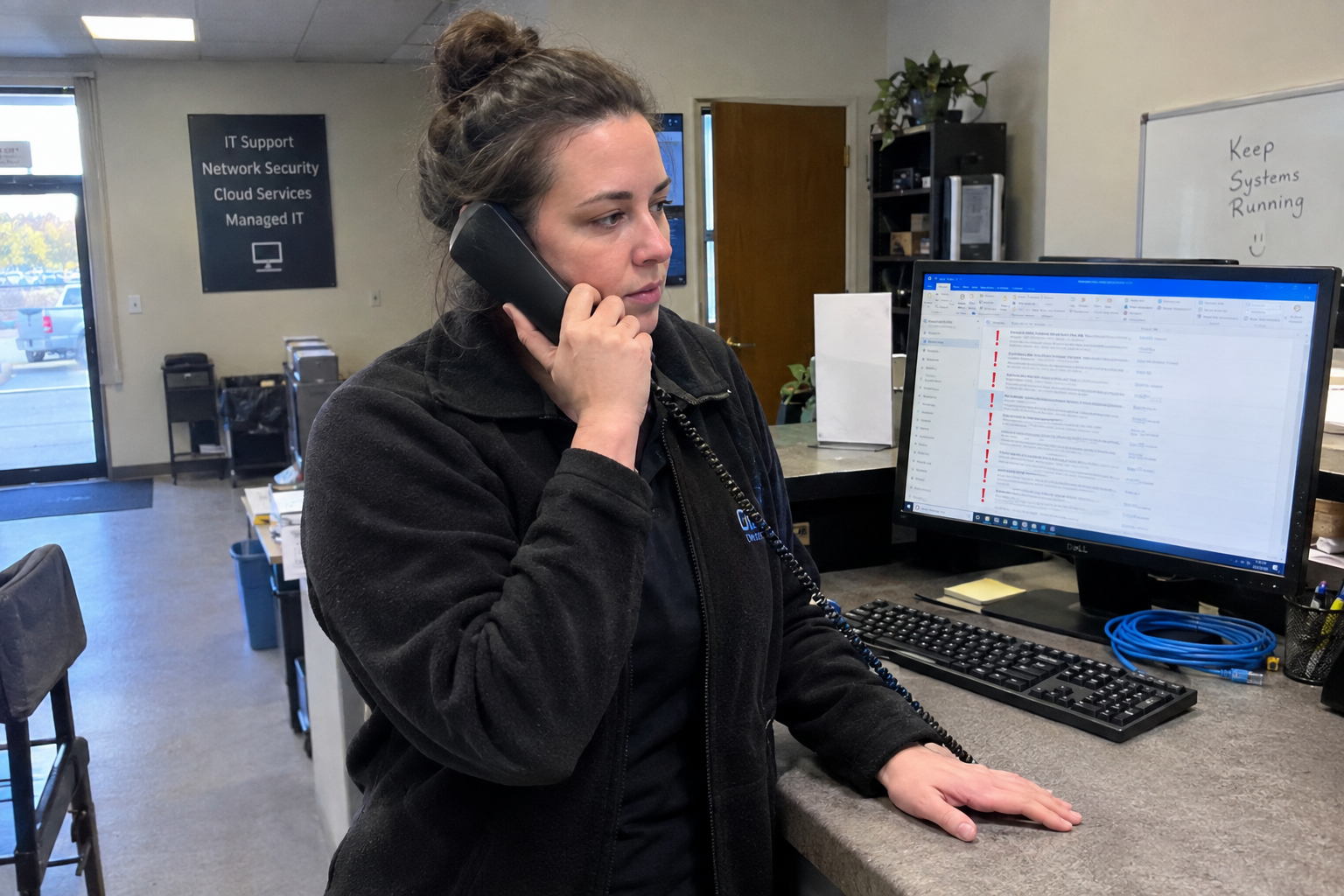
The ticket says: "My computer is slow." That's it. No app, no time of day, no clue whether it's constant or just when they open that 50MB Excel file every morning. Your tech picks it up and starts guessing, which is how a five-minute fix becomes a half-hour scavenger hunt.
The fix is not a better remote tool. It's a structured intake form that forces the client to give you the context you need, plus a standard diagnostic bundle your tech runs on the first touch. My view is that a form is the single highest-leverage change you can make to these tickets. It works even when the client can't articulate what "slow" means, as long as the form is one intake option among phone and chat, not the only door.
When 'My Computer Is Slow' Is the Whole Ticket
Picture a desk where the next ticket is a black box. Your tech has to call the client, play 20 questions, and still ends up remoting in to look at something that might not be the problem. Every one of those calls costs ten minutes before any actual work starts.
Structure beats free text. A client who picks from a short menu tells your tech more than a blank box ever will.
So what exactly goes on that form?
Ask the Right Questions on the Form
The form should capture five fields, and they're the ones that turn a vague ticket into a starting point: the affected application, how long it's been slow, whether it's constant or intermittent, the time of day it happens, and what the client was doing when it started.
Here's the difference that makes the form worth building. Say a client writes: "Excel hangs when I open a 50MB file every morning." That tells your tech to start with Excel add-ins and file size, not hardware. Compare that to "Everything is slow all day," which points to a full profile or hardware check. Same ticket title, two completely different diagnostics.
The form can be a link in your portal or an emailed link, but the key is structured fields, not free text. Drop-downs for the app and time of day, radio buttons for constant versus intermittent, and one text box for the "what were you doing" question. Keep it short enough that a client will actually finish it. A good target is two to four minutes, but test it with your own clients and adjust. If they abandon it, they'll call instead, and you're back to the black box.
Pair the Form With a 15-Minute Diagnostic Bundle
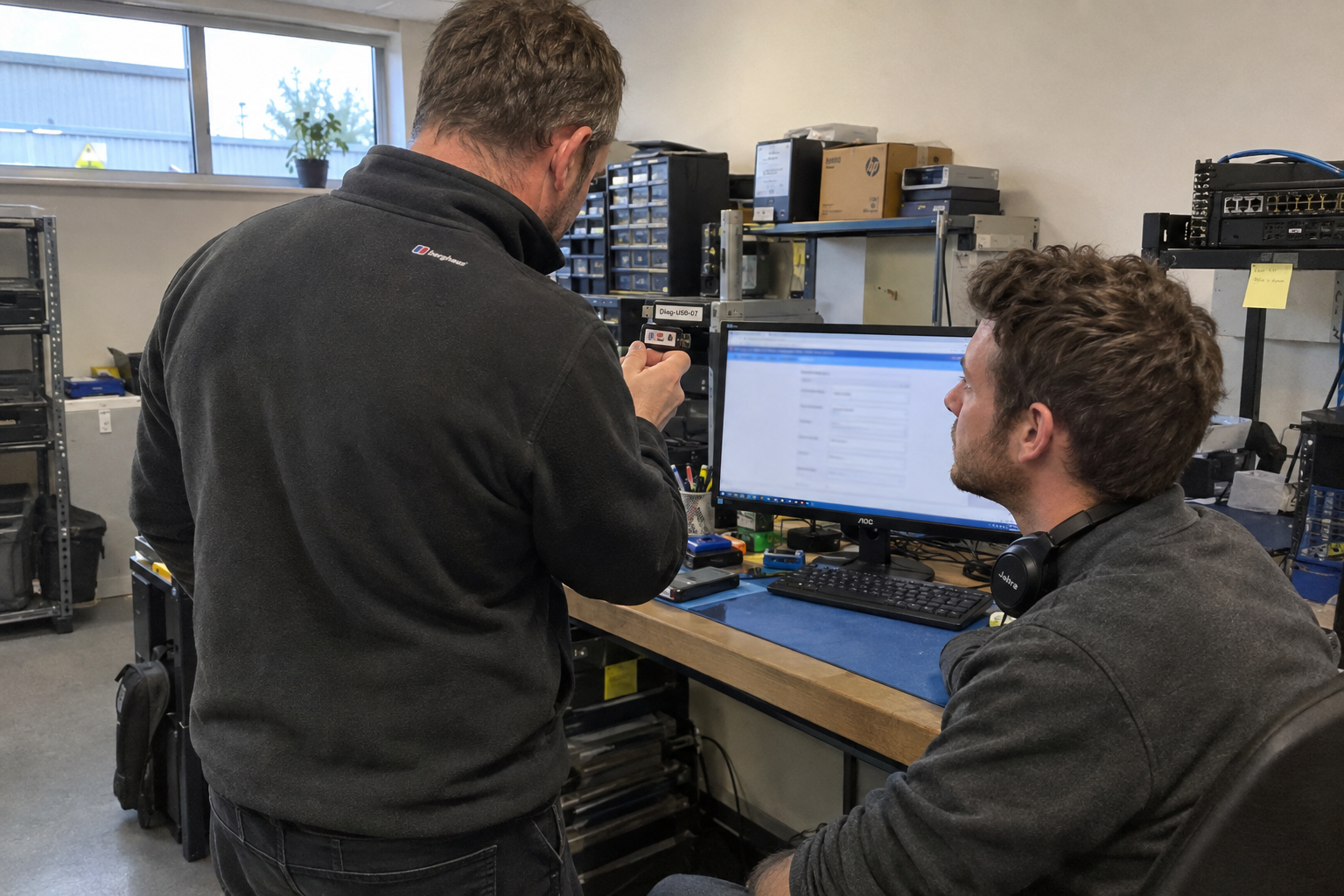
Once the form lands, the tech should not be improvising. You want a standard bundle: check CPU, RAM and disk utilization, review startup programs, and look at recently installed software. That's the core, and it should take 10 to 15 minutes per ticket. That's an estimate to test against your own environment, not a promise.
The form points the diagnostic, so the bundle is targeted, not a scavenger hunt. In the Excel example, the form already suggests software-specific, so the tech starts with add-ins and file associations, not a full hardware teardown.
Someone owns this bundle, and that's the lead tech or service manager. They keep it updated as new causes show up, and they make sure every tech runs it the same way. If you have the scripting chops, automate what you can, but a checklist works fine at this scale.
What happens when the diagnostics come back clean?
Let the Form Set Priority Without Guesswork
Every slow ticket can't be urgent, or nothing is. Add a priority field to the form with defined options: "Not urgent," "Needed today," and "Critical, can't work." Set the default to "Not urgent" and let the client choose from there.
One MSP owner who tried this reported that when clients picked from defined priority options instead of a free-form urgent flag, most kept the default and tickets were still resolved quickly, usually in under an hour. That's one operator's experience, not a pattern, but it's a reason to try it on your own board.
The catch: if you offer "Critical, can't work," you have to honor it. A client who marks it gets a faster response than one who picks "Needed today," and your team has to follow that or the field becomes noise. A client who games it is a signal you're not being consistent.
What If the Form and Diagnostics Don't Catch It?
The form and bundle are a first step, not a guarantee. Sometimes the client can't describe the problem no matter how good your questions are. Sometimes the slowness is intermittent and just isn't there when you look. Sometimes the diagnostics come back clean and the issue is elsewhere.
When that happens, the move is to schedule a follow-up, set up remote monitoring on that machine, or ask the client to record the problem next time it shows up. A screen recording beats a vague description every time.
And the form should never be the only way in. Clients who prefer to call or chat need that door open, or you'll push them away. On the other side, if your volume is high, you may need to triage which tickets get the full diagnostic bundle. Not every slow ticket needs 15 minutes of checks; some just need the form and a quick look.
First Step: Draft the Form This Week
Here's what you do Monday. Pick the five fields that matter most, build the form in your PSA or a free form tool, and test it on a real ticket by Friday. Start short. You can add fields later based on what your techs say they're missing.
This change touches the client experience, so a short note to clients explaining the form and why it helps will smooth adoption. Frame it as getting them faster, more accurate help, and that's a fair promise to make.
The two decisions left are yours: what goes on the form, and who owns the diagnostic bundle. My pick is the service manager owns the bundle, and the form starts with those five fields. Test it, adjust it, and you'll stop guessing what "slow" means.

mspoutpost.com/articles/fix-the-my-computer-is-slow-ticket-with-an-intake-form-and-a-15-minute-diagnostic-bundle
Written by Megan Friesen
MSP Outpost publishes information, not legal, financial, insurance, tax or compliance advice, and reading it creates no professional relationship. For decisions about your business, talk to a qualified professional.